
Result Card Format in Excel: 8 Easy Fields + Free Formulas
Making a neat result card format in Excel can save a teacher many hours at the end of every exam. Instead of writing totals, percentages and grades by hand for every student, Excel can calculate everything once you enter the marks.
In this guide, you will learn the 8 fields that a good result card format in Excel needs, the simple formulas for total, percentage, grade, rank and result, and the printing tips that give you one clean A4 card per student.
Table of Contents
- Result Card Format in Excel: 8 Fields
- How to Set Up the Marks Sheet for Your Result Card Format
- Excel Formulas for Result Cards
- Grading Scale and Remarks
- How to Print Result Cards
- Result Card Format for Different Classes
- How to Write Good Remarks
- Excel Tips to Protect Your Result Card Format
- Common Result Card Format Mistakes
- A Ready-Made Result Card Maker
- Frequently Asked Questions
Result Card Format in Excel: 8 Fields

- School name and logo. Put them at the top of the card.
- Student details. Name, class and section, roll number, and parent or guardian name.
- Exam name and date. For example, Unit Test 1, Half-Yearly or Annual.
- Subject-wise marks. Marks obtained, maximum marks and grade for each subject.
- Total, percentage and grade. These should come from formulas, not typing.
- Rank and result. Pass or fail, and the class rank if your school shows it.
- Attendance and teacher remark. Days present and one helpful line.
- Signatures. Class teacher, principal and parent.
How to Set Up the Marks Sheet for Your Result Card Format
Keep the data on one sheet and the printable card on another. This is the best design for any result card format in Excel, and it keeps your result card format easy to update.
- Row 1: subject names. Row 2: maximum marks for each subject.
- One row per student from row 3, with roll number and name in the first columns.
- Use the letters AB for an absent student and leave the cell blank if a subject is not taken.
- Add dropdowns for exam name so the spelling stays the same.
Excel Formulas for Result Cards
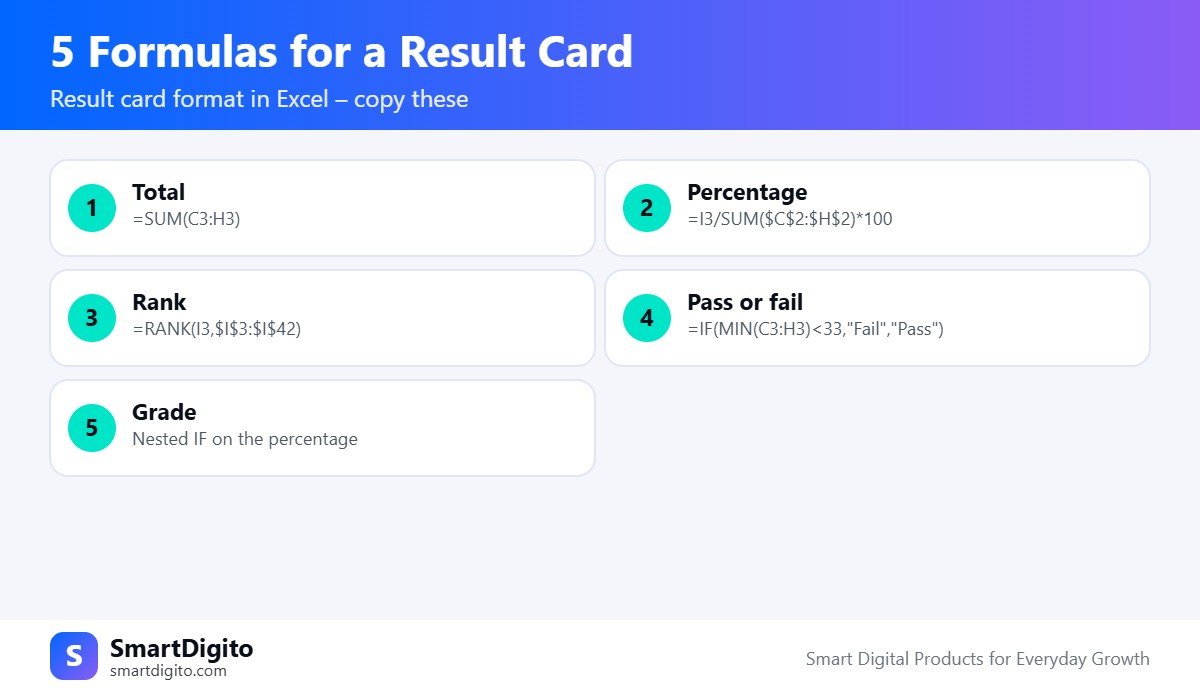
Assume six subjects in columns C to H, with maximum marks of 100 each in row 2.
Total marks:
=SUM(C3:H3)Percentage:
=I3/SUM($C$2:$H$2)*100Class rank:
=RANK(I3,$I$3:$I$42)Pass or fail, where the pass mark is 33 in every subject:
=IF(MIN(C3:H3)<33,"Fail","Pass")Grade from percentage in column J (change the limits to match your board or school):
=IF(J3>=90,"A1",IF(J3>=80,"A2",IF(J3>=70,"B1",IF(J3>=60,"B2",IF(J3>=50,"C","D")))))For a plain-language reference on Excel functions, see the Microsoft Excel help centre.
Grading Scale and Remarks
Grading scales differ between boards and schools, so use the scale that your school follows. For CBSE schools, check the latest circulars on the official CBSE website.
Remarks should be short, kind and specific. For example: “Good progress in Maths. Please practise spelling daily.” You can match a remark to each grade band in Excel, so the card fills it automatically. If you need fresh wording, the 500+ AI Prompts for Teachers pack has prompts for report card remarks and parent messages.
How to Print Result Cards
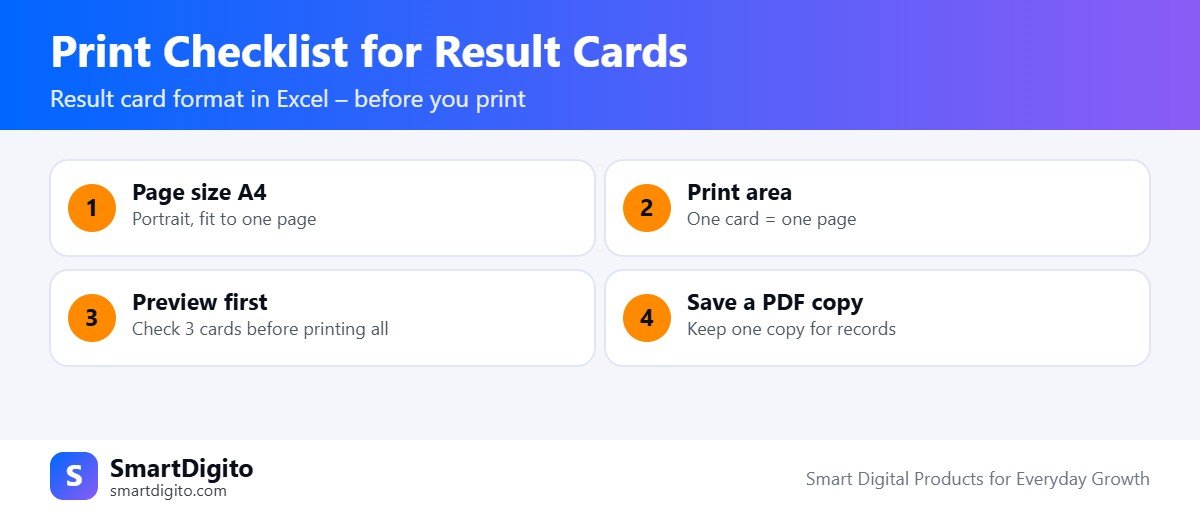
- Set the page to A4 and choose “Fit all columns on one page”.
- Set the print area so that one card fills one page.
- Choose the student with a dropdown, then print or save as PDF.
- To print the whole class, you need one card per student on separate pages. This is easy with a prepared template, but it takes time to build manually.
Common Result Card Format Mistakes
- Typing the total by hand, which causes errors.
- Counting an absent student as zero marks when your school rule is different.
- Not locking formula cells, so someone overwrites them.
- Using different spellings for the same exam name.
- Forgetting to check each card before you print it.
A Ready-Made Result Card Maker
If you do not want to build the sheet yourself, the 1-Click Student Result Card Maker is a ready Excel workbook. You enter marks, choose a student and an exam, and it creates a result card with total, percentage, grade, rank, remark and your school logo. It also prepares a progress card, a class summary and WhatsApp messages for parents.
It is made for school and tuition teachers in India, and you can edit the subjects, exam names and grading scale.
Result Card Format for Different Classes
A good result card format changes with the age of the student. Use the style that your school and board follow.
Primary Classes
For young students, many schools prefer grades and short descriptive remarks over raw marks. The result card format can include a separate section for activities such as art, music and sports, with a simple grade for each.
Middle School
For middle classes, the result card format usually shows subject-wise marks, grade, attendance and a remark. Add a column for the highest mark in the class, if your school shares it.
Secondary Classes
For higher classes, the result card format often separates internal assessment from the written exam and then adds them. Keep these as separate columns, so the final total is easy to check.
Tuition and Coaching Classes
Coaching classes run many small tests. A result card format for them should show the test name, marks, percentage, rank and a progress line across tests. A progress card that shows all exams on one page helps parents see the trend.
How to Write Good Remarks on a Result Card
The remark is the most read part of a result card format. Parents notice it first, so keep it kind, specific and useful.
- Strong performance: “Excellent work in Science. Keep challenging yourself with new problems.”
- Average performance: “Steady progress in Maths. Daily practice of tables will help.”
- Needs support: “Needs help with reading speed. Please read together for ten minutes daily.”
- Good attitude: “Very polite and helpful in class. Keep it up.”
Avoid harsh words and avoid comparing a child with another child. You can also keep a short list of remarks for each grade band and let Excel pick one automatically.
Excel Tips to Protect Your Result Card Format
A result card format is useful only if the numbers stay correct. These small protections save you from silly mistakes.
- Limit the marks. Use data validation so a mark cannot be above the maximum.
- Colour low marks. Use conditional formatting to turn marks below the pass mark red.
- Lock formula cells. Protect the sheet, so only the marks columns can be edited.
- Use one sheet per exam. This keeps the data tidy and the card simple.
- Keep a backup. Save a copy after entering marks, and keep a PDF of every card.
With these checks, your result card format will stay reliable from the first exam to the annual result.
Frequently Asked Questions
How do I make a result card in Excel?
Enter student marks in a table, use formulas for total, percentage, grade and rank, and design a separate card sheet that pulls the data for the chosen student.
Which formula gives the percentage?
Divide the total marks by the total maximum marks and multiply by 100, for example =I3/SUM($C$2:$H$2)*100.
Can I add my school logo to the result card?
Yes. Insert the logo on the card sheet, in the header area at the top.
Can I print result cards for the whole class?
Yes, if the template has one card per student on a separate page. Check the print preview before printing.
Final Thoughts
A well-planned result card format in Excel makes result day calmer. Set up the 8 fields, use formulas for every calculation, and always check the first few cards before you print the whole class. If you run a coaching institute, the Coaching Institute Management Kit adds fee, attendance and test marks tools to the same approach.