
GST Bill Format in Word and PDF: 9 Must-Have Fields (Best Guide)
A clear GST bill format in Word helps every shop, trader and service provider issue a neat, correct bill. You can type it once, save it as a PDF and send it to your customer in a minute. No special software is needed.
In this guide, you will learn the 9 must-have fields of a GST bill format in Word, how to lay it out, how to save it as a PDF and the common mistakes to avoid.

Table of Contents
- Why Use a GST Bill Format in Word
- GST Bill Format in Word: 9 Must-Have Fields
- How to Lay Out Your GST Bill Format in Word
- CGST, SGST and IGST on the Bill
- Amount in Words and Round Off
- How to Save the GST Bill Format as a PDF
- Word or Excel for GST Bills
- Common GST Bill Format Mistakes
- Ready-Made GST Invoice Templates
- Frequently Asked Questions
Why Use a GST Bill Format in Word
Word is on almost every computer, so a GST bill format in Word is easy to start with. You can change the logo, fonts and layout in a few clicks.
- Simple: you type text into a table, like a normal document.
- Editable: you can fix a name or an address before you save the bill.
- Printable: the bill fits neatly on one A4 page.
If you issue many bills a day, a GST bill format in Excel with formulas is faster. We compare both below.
GST Bill Format in Word: 9 Must-Have Fields
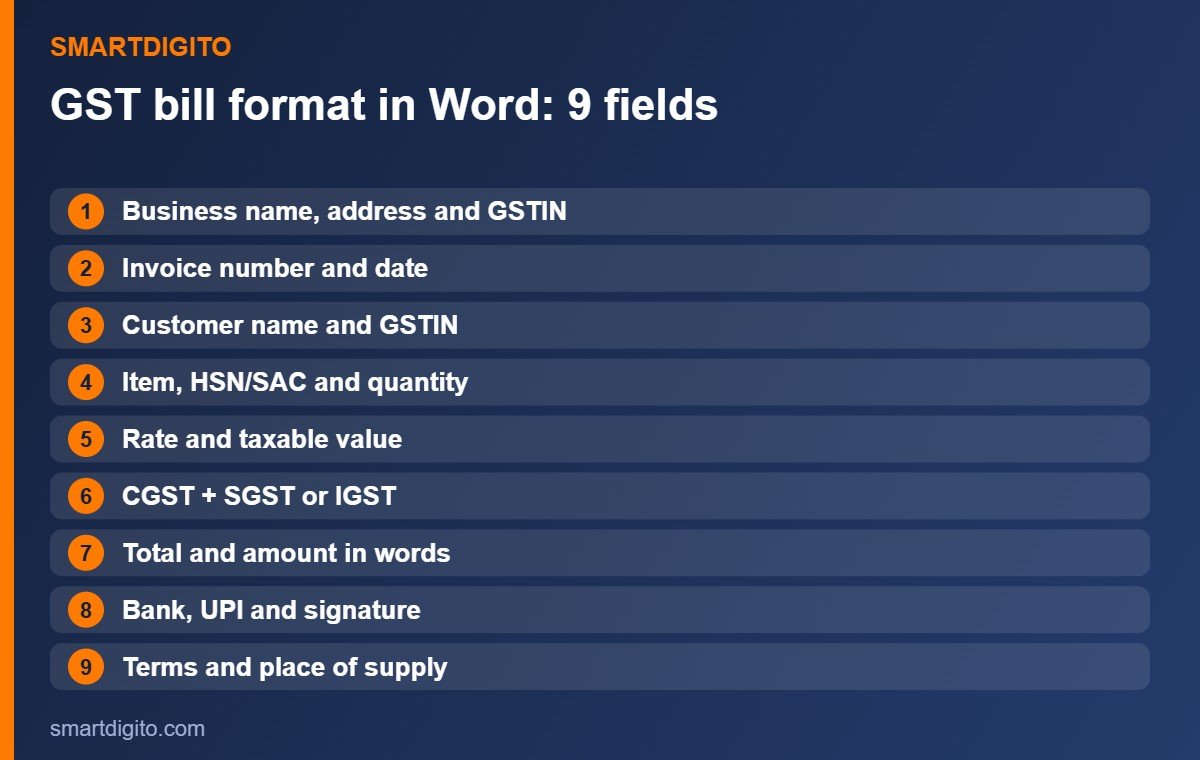
Every GST bill format in Word should show these nine items. Read the GST portal for the latest rules, and check your case with a professional.
- Business details. Name, address, phone and your GSTIN.
- Invoice number and date. Use a running number that never repeats.
- Customer details. Name, address and GSTIN if the customer is registered.
- Item details. Description, HSN or SAC code and quantity.
- Rate and taxable value. Show the price before tax.
- GST amount. CGST and SGST for the same state, or IGST for another state.
- Total and amount in words. Show the grand total clearly.
- Bank and UPI details. This helps customers pay quickly.
- Terms and signature. Add place of supply, terms and your signature.
How to Lay Out Your GST Bill Format in Word
A good GST bill format in Word is simple and tidy. Use one table for the items and keep the other details above and below it.
- Top: logo on the left, business name, address and GSTIN in the centre.
- Title: write “Tax Invoice”, with the invoice number and date on the right.
- Customer block: bill to and ship to details.
- Item table: serial number, item, HSN, quantity, rate, taxable value, GST and total.
- Summary: subtotal, tax, round off and grand total.
- Footer: amount in words, bank details, terms and signature.
Use one clean font, such as Calibri or Arial, and avoid heavy colours so the bill prints well.
CGST, SGST and IGST on the Bill
Your GST bill format in Word must show the right tax type. If you sell to a customer in your own state, show CGST and SGST in equal halves. If you sell to another state, show IGST.
For example, on a taxable value of ₹1,000 at 18 percent GST, the tax is ₹180. Within the state, that is ₹90 CGST plus ₹90 SGST. Between states, it is ₹180 IGST. Rates differ by product, so check the correct rate before you bill.
Not sure about the bill type? Read our guide on tax invoice vs bill of supply.
Amount in Words and Round Off
A proper GST bill format in Word shows the amount in words under the grand total. It prevents mistakes and makes the bill look professional.
- Write the amount in words in Indian style, for example “Rupees One Lakh Twenty Thousand Only”.
- Show round off as a separate line, so the total is a whole rupee.
- Check the total again before you send the bill.
How to Save the GST Bill Format as a PDF

Customers like a PDF because it cannot be changed by mistake. Here is how to make a GST bill format PDF from Word.
- Check every field and the tax amount.
- Go to File, then Save As, and choose PDF.
- Name the file with the invoice number, customer and date.
- Send it on WhatsApp or email and keep a copy in a backup folder.
Word or Excel for GST Bills
Both work, but they suit different needs.
- Word: best for a few bills a day, with a fixed layout.
- Excel: best for many bills, because GST, totals and amount in words can be calculated automatically.
Our guide on the GST bill format explains the Excel method in detail, and how to create a GST invoice takes you step by step.
Common GST Bill Format Mistakes
- Missing GSTIN or a wrong GSTIN.
- Repeating an invoice number.
- Using CGST and SGST for an out-of-state sale.
- Typing totals by hand and making a calculation error.
- Forgetting the HSN or SAC code.
- Not saving a backup of every bill.
Ready-Made GST Invoice Templates
If you do not want to build the bill yourself, the GST Invoice Templates Pack gives you 30 ready formats in Excel, Word and PDF. It includes the tax invoice, quotation, delivery challan, bill of supply and more, in English and Hindi, with automatic GST in the Excel files.
Frequently Asked Questions
Can I make a GST bill in Word?
Yes. A GST bill format in Word works well if you fill in all required fields and calculate the tax correctly.
What should a GST bill include?
It should include business and customer details, invoice number and date, items with HSN or SAC, tax amounts, total, amount in words and a signature.
How do I convert a GST bill to PDF?
Use File, Save As and choose PDF in Word. Then name the file clearly and share it.
Is Word better than Excel for GST bills?
Word is simple for a few bills. Excel is faster for many bills because it calculates the tax for you.
Final Thoughts
A good GST bill format in Word is clear, complete and correct: the nine fields, the right tax type and a clean PDF. Set it up once, save it as a template and reuse it for every sale.
Note: This guide is general information and not legal, tax or accounting advice.